
Upload your manuscript, choose your trim size and PublishPro instantly calculates your margins and gutter to meet the exact specs of KDP, IngramSpark, and every major self-publishing platform.
Supported Self-Publishing Platforms







How it works
Three steps to a print ready paperback
Upload
Select trim size
Upload your word manuscript select trim size, choose paper and ink settings. PublishPro handles the rest automatically.

Format
Auto format
We automatically configure your margins, inside gutter, and bleed. Auto-generate TOC, and structure the book.

Export
Edit & style
Choose from professional interior templates, apply fonts and typography styles, then download your PDFX-1a print-ready file.


Print settings
Set your print preferences. We format it right
Paper colour, ink type, and reading direction, set them once and PublishPro formats your entire interior correctly for KDP, IngramSpark, and every major self-publishing platform.
Ink type
It determines whether images format in colour or greyscale throughout your entire interior
Paper color
White or cream affects how your typography and images render in the formatted file
Reading direction
Sets page flow, gutter position, and interior layout structure for your language
Book trim size
Pick your trim size,
We handle the rest
Trim size is one of the most important formatting decisions you'll make. It affects your page count, printing cost, readability, and the physical feel of your finished book.
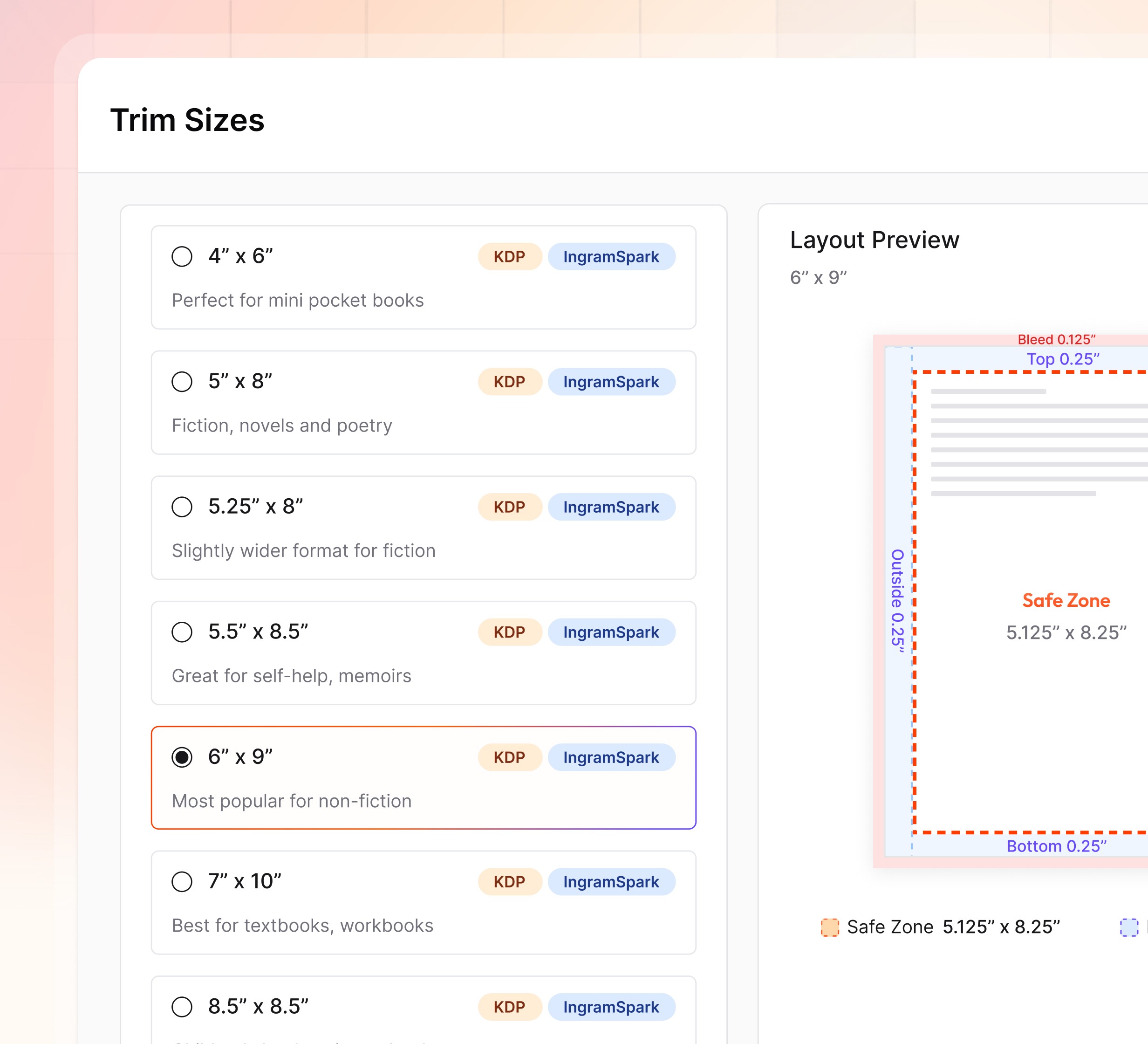

All standard KDP & IngramSpark trim sizes supported
Genre-specific trim size recommendations built in
Add custom trim size and we auto calculate margin and gutter

Margin and Gutter
The formatting details that get most books rejected
Most rejected paperbacks come down to two specs, margins and gutter. Select your trim size and PublishPro configures both automatically from your page count to meet KDP and IngramSpark's exact print standards.
Outside margins, auto-set from your trim size. Never too narrow. Never rejected.
Inside gutter calculated from your page count
Updates automatically when trim size or page count changes
KDP & IngramSpark compliant, every single export
Bleed
Edge-to-edge images? everything configured automatically
Add images to your interior and PublishPro formats them correctly based on your bleed setting automatically. If bleed is off, images are formatted within your safe zone. If bleed is on, edge-to-edge images are extended to the correct bleed line. No manual resizing. No white borders. No incorrectly placed images.
Bleed off by default, correct for most text-only paperbacks
Turn bleed on, page size and margins adjust automatically.
Replace existing images without breaking your layout


Templates & custom styles
Professional interior templates, built for every genre
Pick a starting point from our library of professionally designed interior templates, built for every book genre. Refine fonts, spacing, and chapter styles as much or as little as you want.
Book interior design
Make every page look professionally designed
Control typography, layout, images, and structure so every page of your book looks polished, readable, and ready for print.


Front matter and back matter formatting
PublishPro intelligently detects your title page, copyright, dedication, prologue, chapters, and appendix etc.. assigned to the right place automatically.


Book cover setup
Upload your cover & We format it for print
Upload your book cover and PublishPro automatically calculates your spine width from your page count and paper type. Your cover dimensions are sized to match your interior trim size exactly. Download a print-ready cover file and upload directly to KDP or IngramSpark.
Spine width calculated from your page count and paper type. Always correct.
Cover and interior sized together, nothing misaligns at print.
Download a print-ready cover file. Upload directly. Done.


Academic books
Format academic books & PublishPro handles complex structure
Add your academic manuscript and PublishPro structures it correctly for research and educational publishing. Heading levels are applied consistently across chapters, sections, and subsections. Footnotes and reference sections are inserted, tables, charts, and figures are placed cleanly with automatic numbering
Consistent heading levels for chapters, sections, and subsections applied throughout
Footnotes and reference sections inserted without breaking your page layout
Tables, charts, and figures numbered and placed cleanly. Automatically.
Who PublishPro is for
Built for every kind of creator


Frequently asked questions
We’re here to answer your questions
Will PublishPro calculate my margins and gutter automatically?
Yes. Simply choose your trim size, and PublishPro automatically calculates your margins, gutter, and bleed based on your current page count and print requirements. If your manuscript grows or shrinks, everything updates automatically before export.
Can PublishPro clean up extra spaces and irregular line breaks in my manuscript?
Yes. During import, PublishPro detects and removes irregular spacing, unnecessary line breaks, and common formatting inconsistencies to create a cleaner, more professional layout.
Will my Table of Contents update if I edit my book?
Yes. Your Table of Contents is generated from your manuscript structure and updates automatically whenever chapters are added, removed, or reordered. Final page numbers are refreshed when your PDF is generated.
Do I need to calculate my paperback cover size myself?
Upload your cover design and PublishPro automatically calculates the correct spine width, bleed, and cover dimensions based on your trim size, page count, paper type, and printing platform.
Will my paperback meet Amazon KDP and IngramSpark requirements?
Every export is prepared to match the latest print specifications for Amazon KDP and IngramSpark, including margins, gutter, bleed, trim size, fonts, and cover dimensions.
What happens if I change trim size after formatting?
PublishPro automatically regenerate your layout, margins, gutter, Table of Contents, and cover specifications when the final PDF is generated, so you don't have to start over.
Can I customize the formatting after PublishPro finishes?
Once your book is formatted, you can change templates, typography, chapter styles, headers, footers, scene breaks, and other design elements without rebuilding your entire book.
Will PublishPro handle recto and verso pages correctly?
Yes. PublishPro automatically starts new chapters on the right-hand (recto) page and inserts blank left-hand (verso) pages whenever needed, following professional publishing standards.