Why Your eBook Formatting Looks Broken (And How to Fix It)
A diagnostic guide for self-publishing authors who can't figure out why their book looks perfectly fine in Word and broken once it reaches a Kindle device soon.

Words by
Arslan Younas
The moment every self-published author dreads
It’s 11pm. You just uploaded your manuscript to KDP. You click the preview button, ready to see your finished book.
Then you see it.
The text is doing something weird. Chapter 3 has a giant blank space in the middle of a sentence. Your beautifully placed image is now sitting on top of paragraph two. The table of contents you spent an hour building points to the wrong pages. And the indentation that looked perfect in Word has decided to randomly disappear on certain paragraphs.
You stare at the screen and ask the question every self-publishing author eventually asks: “What did I do wrong?”
The short answer is: probably nothing you would have known about.
The longer answer is what this guide is here to explain.
A quick reality check before we continue
Before diving into the technical reasons, here’s a perspective that helps:
“Authors think they’re publishing a document. They’re actually publishing software. An EPUB file is code that gets interpreted differently by every reading device. That’s why what looks fine on your laptop falls apart on a phone.”
This is the mental shift that separates frustrated authors from professional ones. Your eBook isn’t a Word document with a different file extension. It’s a piece of responsive code that has to work on every screen size, every device, every font setting, and every reader preference.
The good news? You don’t need to learn HTML or become a developer to publish a clean eBook. You just need to understand what’s actually breaking, and use tools built for the job.
This guide breaks it down in three layers.
Layer 1: What’s happening behind the scenes when eBook formatting breaks
Layer 2: The specific problems and how to identify them in your manuscript
Layer 3: The fastest path to a clean, professional eBook
Let’s start.
Layer 1: What’s actually happening to your file
When you write in Microsoft Word, you’re using a fixed-page editor. Word shows you exactly how the page will look when printed. Margins are set. Page sizes are locked. Fonts render exactly as you chose them.
When your file gets converted to an eBook, all of that gets thrown out.
The conversion process strips your document down to its underlying structure (paragraphs, headings, breaks, and styles) and rebuilds it as flexible code. That code is what eBook readers interpret.
Here’s the catch. The conversion can only translate what it understands. If you formatted things visually (using spaces, tabs, manual line breaks, or font tricks) instead of structurally (using paragraph styles, page breaks, and heading hierarchy), the conversion either guesses wrong or skips the formatting entirely.
This is why your book can look flawless in Word and broken everywhere else.
It’s not your writing. It’s not your effort. It’s the gap between how Word displays text and how eBooks actually work.
This is the gap PublishPro was built to close. Instead of asking you to think like a developer, the platform reads your manuscript, applies clean structural formatting automatically, and outputs eBook files that hold together across every device.
But before we get to solutions, let’s diagnose what’s actually wrong with your file.
Layer 2: The diagnostic guide
Use this section like a checklist. For each symptom, you’ll find the cause and the fix.
Symptom: random blank spaces or empty pages
What you’re seeing: Huge gaps between paragraphs, empty pages between chapters, or unexpected white space in the middle of the text.
What’s actually happening: You used the Enter key to create space. Hitting Enter eight times to push the next chapter onto a new page works in Word, but it doesn’t translate. Each Enter becomes an empty paragraph in your eBook, which different devices interpret differently.
The fix: Use a proper Page Break command (Ctrl+Enter on Windows, Cmd+Enter on Mac) between chapters. Delete every empty line in your manuscript. Let the page break command handle the spacing.
Where PublishPro helps: The platform automatically detects manual line breaks during import and flags them before they cause problems. You can clean them in one batch instead of hunting through your manuscript line by line.
Symptom: inconsistent indentation
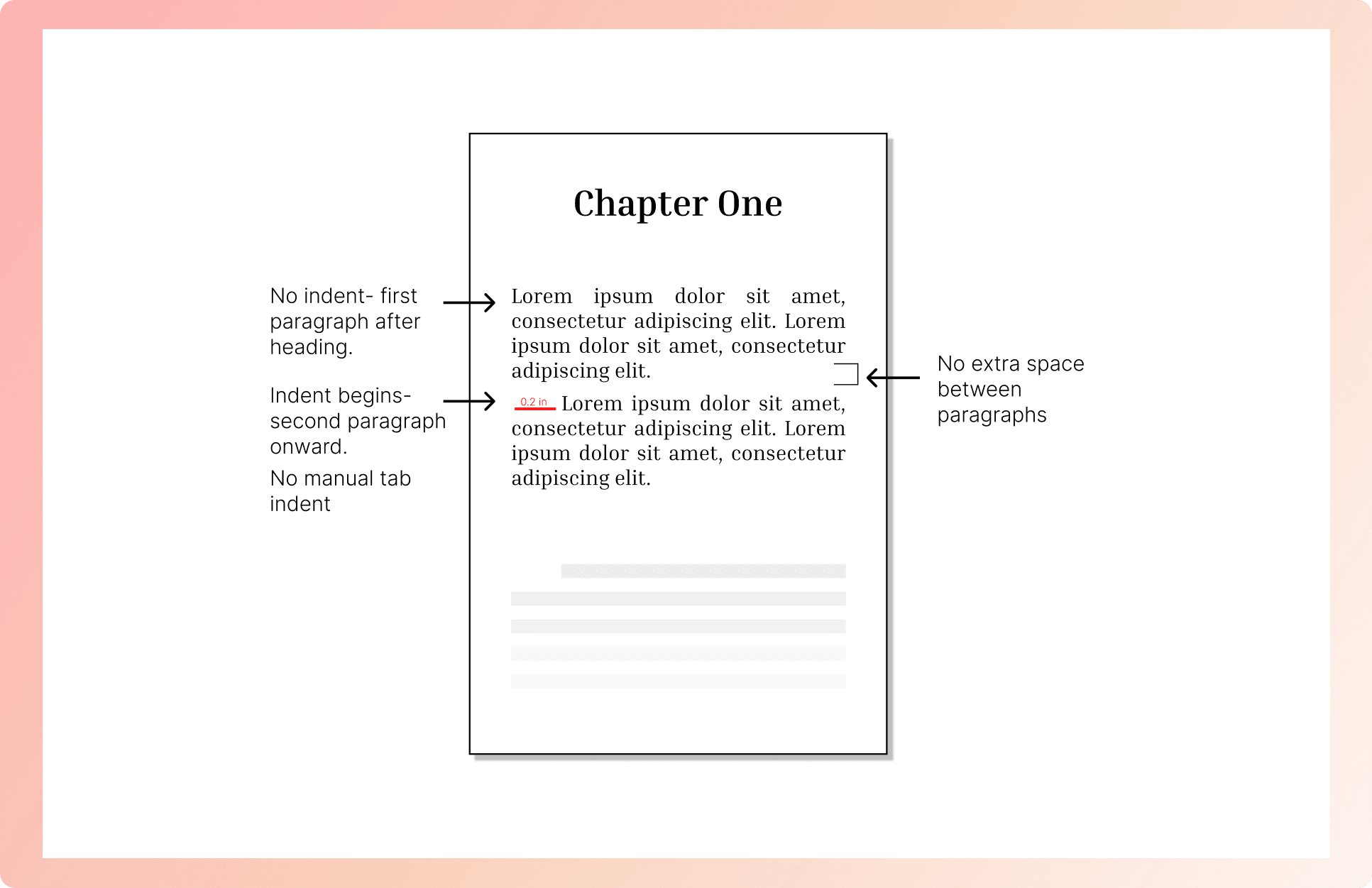
What you’re seeing: Some paragraphs are indented, others aren’t. Or the indentation is different sizes throughout the book.
What’s actually happening: You used the Tab key or spaces to create indentation. Tabs don’t survive eBook conversion cleanly, and the result is unpredictable.
The fix: Set paragraph indentation through paragraph styles (typically 0.25 inches for the first line). Apply the same style to every paragraph in your body text. Delete every Tab character. You can do this with Find and Replace by searching for ^t (in Word) and replacing it with nothing.
Symptom: chapter titles look different in different places
What you’re seeing: Chapter 1 is centered, bold, and large. Chapter 5 is left-aligned, slightly smaller, and uses a different font. They were supposed to match.
What’s actually happening: You styled each chapter title manually instead of using a Heading 1 style. This also means your table of contents is probably broken, because eBook readers use heading styles to build the TOC.
The fix: Select every chapter title in your book. Apply the Heading 1 style to each one. Customize the Heading 1 style once (font, size, alignment, spacing), and every chapter title will update automatically.
Symptom: the table of contents doesn’t work
What you’re seeing: Readers tap on a chapter and nothing happens, or they get sent to the wrong place. Reviews are starting to mention it.
What’s actually happening: Either your TOC was created manually (typed as plain text), or your chapter headings weren’t tagged with proper heading styles. eBook readers can’t generate a working TOC from raw text.
The fix: Delete your manual TOC. Make sure every chapter uses the Heading 1 style. Generate a new TOC using your software’s automatic Table of Contents tool, which builds links from the heading structure.
“A broken table of contents is the single most reported formatting problem in Amazon reviews. Most authors don’t notice it because they preview the book on a desktop where the issue doesn’t show up the same way.”
Where PublishPro helps: PublishPro auto-generates your TOC from your heading structure during import. Every chapter link is tested and verified before you export.
Symptom: images appearing in the wrong place or overlapping text
What you’re seeing: An image that sat neatly in the middle of chapter 4 has moved to the start of chapter 5. Or it’s overlapping with text. Or it’s stretched and distorted.
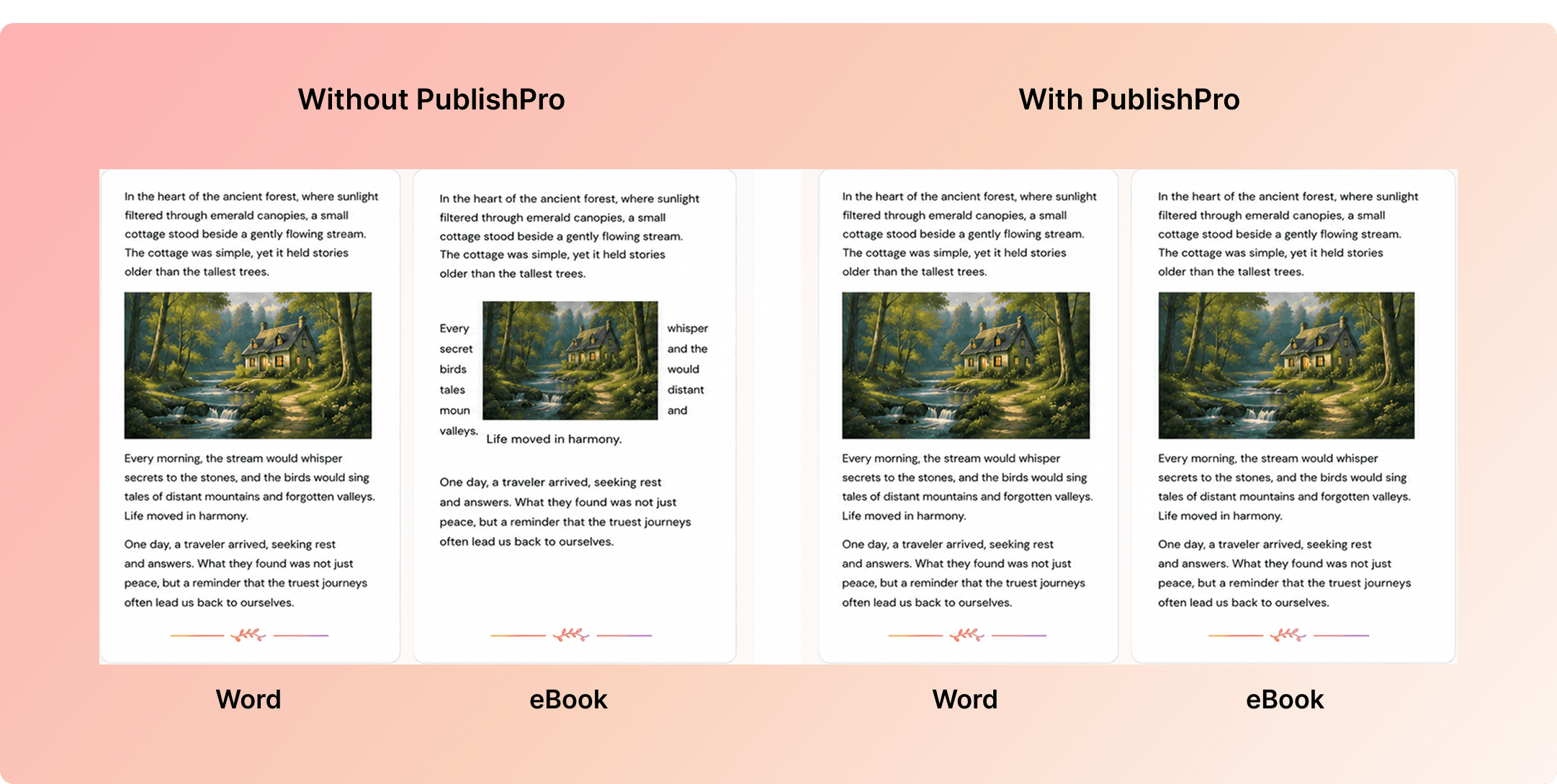
What’s actually happening: You used text-wrapping (where text flows around the image) or anchored the image to a specific page position. Neither of these survives conversion well.
The fix: Set every image to “in line with text.” This means the image sits in the text flow like a giant character, and it moves with the surrounding paragraphs instead of trying to float on the page. Center the image on its own line.
Symptom: the font keeps changing
What you’re seeing: Most of your book is in one font, but certain paragraphs are clearly in a different one. Sometimes the font even changes mid-sentence.
What’s actually happening: You pasted text from another source (an email, a website, a Google Doc) into Word, and the original formatting came along with it. Word remembered the source font even though you didn’t see it visually.
The fix: Select all text in your manuscript (Ctrl+A or Cmd+A), then apply a single body font to the entire document. Then go back and apply your heading styles to chapter titles. This forces consistent typography throughout.
Symptom: the book looks fine on desktop but breaks on phone
What you’re seeing: Your Kindle preview looks great on your computer. A reader emails you saying the book is unreadable on their phone.
What’s actually happening: You only tested on one screen size. Different devices interpret eBook code differently, and small phone screens reveal problems that larger screens hide.
The fix: Always test your eBook on at least three devices before publishing. The Kindle app on your phone, a tablet, and a desktop reader. Change the font size while reading. Rotate the screen. Check that paragraphs flow correctly and images don’t break.
Where PublishPro helps: PublishPro includes a multi-device preview that shows your eBook on phone, tablet, e-reader, and desktop simultaneously. You catch device-specific issues before publishing instead of after.
Layer 3: The faster way forward
You can fix all of these problems manually. People do it every day. But it typically takes 20 to 40 hours per book, and every time you edit your manuscript, you have to restart most of the process.
“The technical work of eBook formatting hasn’t gotten harder. It’s gotten more invisible. Modern platforms handle it in the background so authors can focus on their writing.”
This is why PublishPro exists. Instead of asking you to learn what a structured EPUB file looks like, the platform builds one for you from your manuscript automatically.
Here’s how the two processes compare:
Step | Manual Process | With PublishPro |
|---|---|---|
Clean up manuscript | 2 to 4 hours | Automatic detection during import |
Apply structural formatting | 4 to 8 hours | Applied automatically |
Generate table of contents | 1 to 2 hours | Built from your headings |
Convert to EPUB and KPF | 1 hour plus testing | One click |
Validate against platform specs | 2 to 3 hours | Built-in validation |
Test on multiple devices | 3 to 5 hours | Multi-device preview included |
Total time | 13 to 23 hours | Under 1 hour |
The point isn’t that manual formatting is impossible. It’s that there’s no longer a reason to do it that way unless you genuinely want to learn the technical side.
Your time is better spent writing your next book.
Where to go from here
If you’re reading this guide, you’ve probably been frustrated by formatting at some point. Maybe you’re staring at a broken Kindle preview right now.
Here’s what I’d suggest, depending on where you are:
If you’re about to publish: Stop. Test your eBook on your phone first. Click every TOC link. Change the font size while reading. Catch the problems before your readers do.
If you’ve already published and discovered formatting issues: Don’t panic. You can upload an updated file. Use the diagnostic section above to identify what’s broken, fix the source manuscript, regenerate your eBook, and re-upload.
If you’re starting from scratch: Skip the manual learning curve. Modern formatting platforms handle the technical work that used to take days of trial and error.
Your book deserves to look as professional on the page as the writing inside it.